-
Download putty here and install it.
-
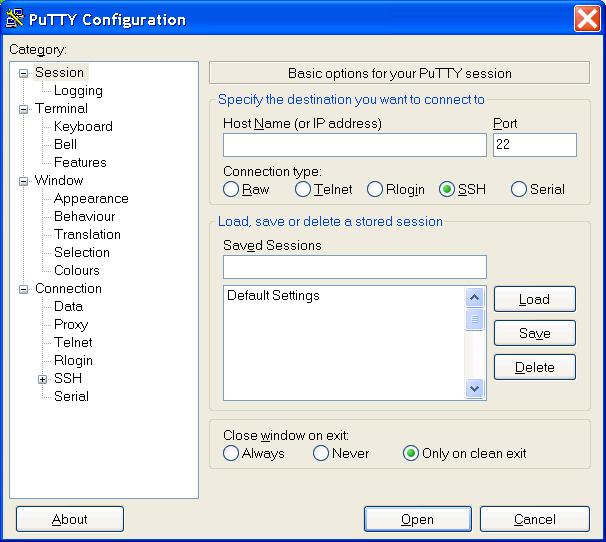
Now open PuTTY. It should look something like this:
-
Enter math.wustl.edu in the "Host Name" input box. And enter mathproxy in the "Saved Sessions" input box.
-
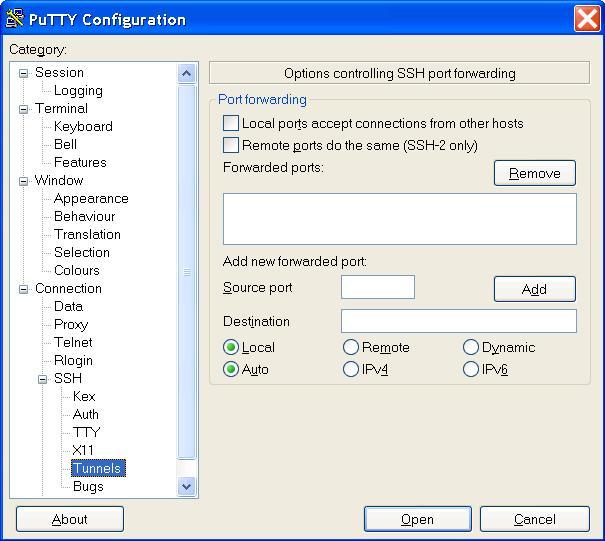
On the left, click the "+" sign at the left of "SSH" to look for the "Tunnels" catagory.
-
Click "Tunnels". It should look something like this:
-
At this point, you'll need to enter another port number, in the "Source Port" field. This SHOULD NOT be the same as the remote server, you can center a random number here. Try to make it 3-4 numbers, and not sequential (eg: 1234 is bad, 2918 is good. For example, I used 9090). Next, click/select "Dynamic" below that, then click "Add".
-
On the left side, again, now click on "Session", then click "Save" to save your settings. Finally, click "Open" to start your connection to the remote SSH server. At this point, you'll need to login. It will first ask you for your username, then password. If you're not sure what to use here, ask your web host. Now minimize PuTTY.
-
Now you need to configure your browser to the tunnel. I am going to configure firefox here.
Open Firefox then go to "Tools" then "Options". Now click on the "Advanced" tab, then the "Network" tab. Now click the "Settings" button. Then click on "manual proxy configuration". In the "SOCKS Host" field, enter "127.0.0.1". For the "Port" field, type the random number you chose in PuTTY in the last step. Now check "SOCKS v5" below that, click OK, then OK again.
That is it! Now whenever you use your firefox to browse the Internet, your network traffic will go through our server math.wustl.edu.
|